Using the advanced configuration screen allows you to customize how Silent Sifter interacts with a given location, including folder structures, file renaming, and filtering files based on their metadata. To enter advanced configuration mode press the edit button on the location menu from the home screen, or press the edit button after selecting a location on the configuration screen.
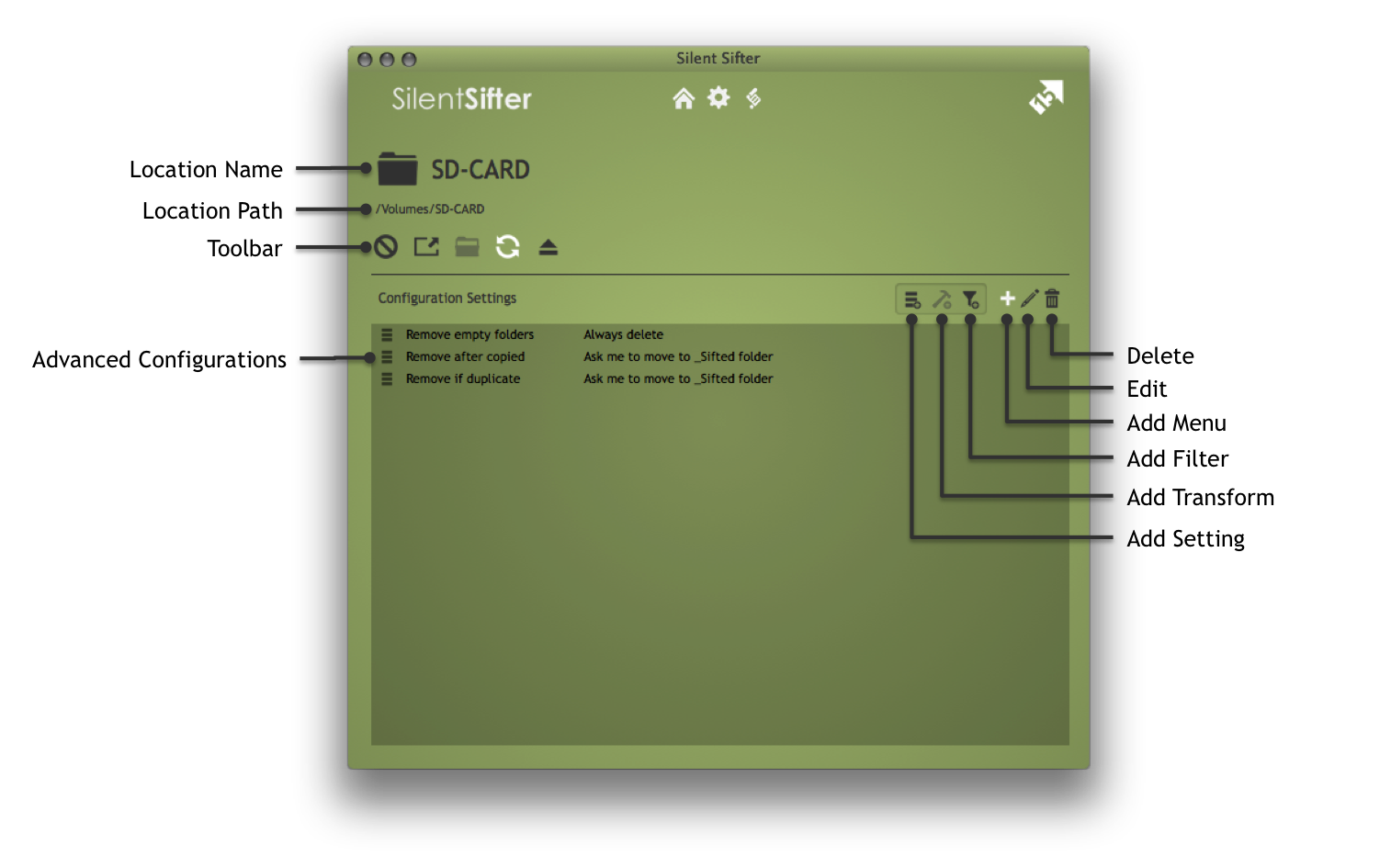
|
|
Add Menu Show the button menu for adding new configurations |
|
|
Edit Edit the selected configuration |
|
|
Delete Delete the selected configuration |
|
|
Add Filter Add a new filter configuration |
|
|
Add Transform Add a new transform configuration |
|
|
Add Setting Add a new setting configuration |
|
|
Disable Disable or enable the location for sifting |
|
|
Open Open the location in the default OSX application |
|
|
Open _Sifted Open the _Sifted folder for the input location |
 |
AutoSift Disable or enable automatic sifting |
|
|
Eject Eject the external device or drive |










Varying Advanced Configuration Options
Each type of location will have different advanced configuration options, depending on its type. The options vary based on the capabilities of the input/output type.
For example, input folders will have different configuration options than output folders, as will camera inputs.
Location Specificity
All advanced configurations, once set, are unique to the location they are set upon – setting a folder structure on one output folder will not affect other output folders.
Transforms
Transforms are options for modifying files (photos & videos) coming from / to the location. The transforms available will vary by input/output type, but include the following options:
- File Renaming (output folder and output iPhoto only)
Settings
Settings are options that you can set on the location that will affect how it behaves.
The settings available will vary by input/output type, but include the following options:
Input Settings
- Remove Input Files After Sifting
- Remove after copied (input folders & cameras)
- Remove if duplicate (input folders & cameras)
- Remove empty folders (input folders & cameras)
- AutoSift
- Minimum Delay (inputs)
- Moment
- Minimum Length (inputs)
- Minimum Files (inputs)
- Divider Size (inputs)
- Files To Import (camera inputs)
Output Settings
- Folder Structure (output folder)
- Moment
- Date Format (outputs)
- Length Format (outputs)
- Naming (outputs)
- Time Format (outputs)
Files to Import
Every input camera location has it’s own setting for Files to Import. By default, this is set to ‘All Files’.
Files to import defines which files will be imported from a given input camera into a temporary folder and then sifted.
By default, and in previous versions of Silent Sifter this was always ‘All Files’.
You can now set this to ‘New Files Only’, which will only import files that were successfully copied to or found as a duplicate in ****Any**** output on a previous sift.
This can provide tremendous time savings if you find yourself retaining a large number of files on your camera, and then sifting the files over and over again.
This can also provide you the ability to import files one time, retain them on your camera, and then delete or modify photos in your library without those photos being re-imported on the next import from the camera.
Minimum AutoSift Delay
Every input location has it’s own setting for Minimum AutoSift Delay. By default, this is set to 1 Minute.
AutoSift delay defines how long Silent Sifter should wait after a file change was detected in the given input that indicates an AutoSift is needed.
This is a configurable value, which you can set individually on each input.
This value is only used if AutoSift is enabled on a given input.
This is especially helpful in conjunction with Moments, so that you can ensure that an AutoSift is not triggered too early, thereby grouping moments in an incomplete or sub-optimal way. A good example of this is when using autosift with Apple PhotoStream, or Dropbox camera upload. In these cases, files will come in intermittently over time, and you may wish for Silent Sifter to wait until all of the files have presumably appeared, and are ready to sift.
Filters
Filters can be applied to inputs and outputs. Learn more.
Tokens
When building custom folder structures, file renaming patterns, filters, moments, etc, you will use some variation of tokens, token options, and the token editor. Follow the links to learn more.