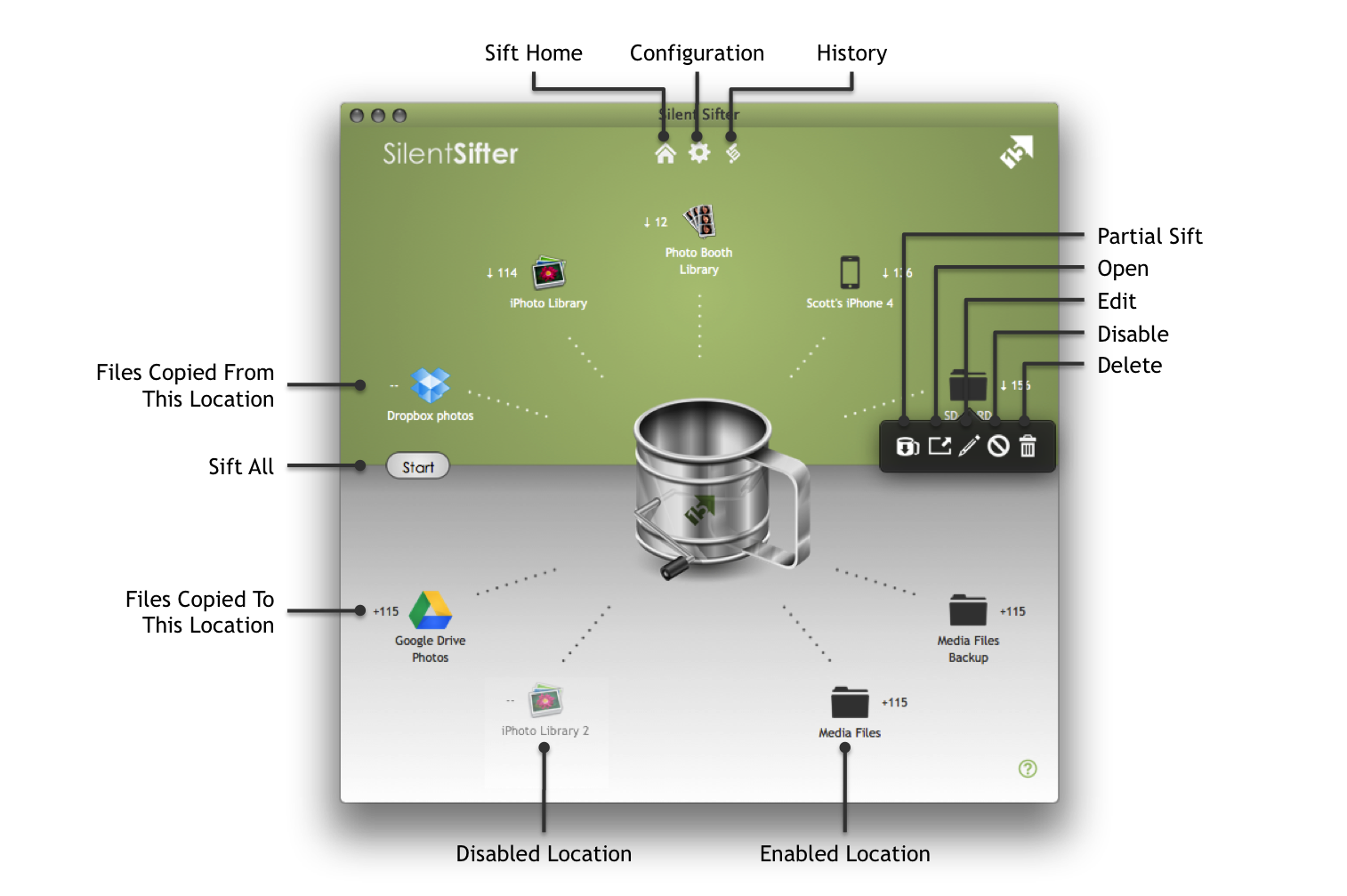
The home screen is where you can start sifting, and monitor progress of the sifting process. Additionally, you can create new inputs and outputs by dragging files and folders into the respective input (green) and output (white) areas. Note that only the first 5 inputs and outputs are displayed on the home screen.
|
|
Home Go to the home screen within Silent Sifter |
|
|
Configuration Go to the configuration screen within Silent Sifter |
|
|
History Go to the sifting history screen within Silent Sifter |
|
|
Partial Sift Sift the selected location to/from all enabled outputs/inputs. Learn more. |
|
|
Open Open the selected location in the default Mac OSX application. Learn more. |
|
|
Edit Perform advanced configuration of the selected location |
|
|
Disable Disable or enable the selected location for sifting. Learn more. |
|
|
Delete Delete the selected input or output location from Silent Sifter |








About Sift All
When you press the ‘Start’ button, the sift process will start. All enabled inputs will be sifted into all enabled outputs. There must be at least one enabled input and one enabled output in order to start sifting. Once sifting has started, a progress meter will be shown, and you will not be able to sift again until the sift process is complete or you cancel the sift process.
About Drag and Drop
You can add new inputs and outputs by dragging them into the home screen.
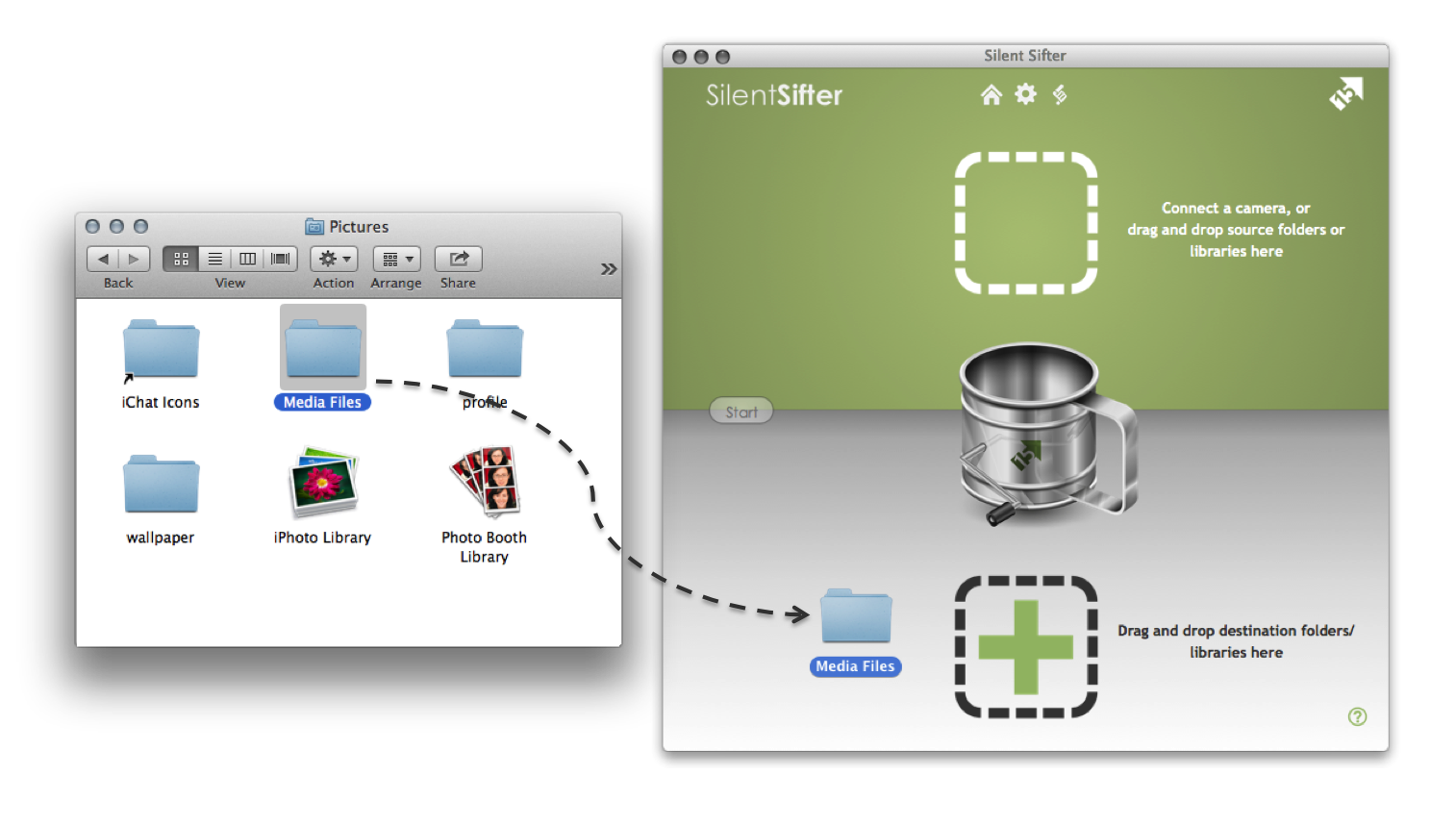
If you would like to add an input, you drag the location into the inputs (green) area, and drop it. If you would like to add an output, you drag the location into the outputs (white) area, and drop it. Once you drop it, Silent Sifter will validate that it is an acceptable location, and then add it. If it is not a valid location, you will receive a notification.
You cannot drag media files directly into Silent Sifter at this time.
Due to restrictions in the App Store, you cannot drag more than one location into Silent Sifter at a time. If you drag more than one location into Silent Sifter, only the first location will be processed. If you would like to add more than one location at a time, you can do so using the menu buttons in the configuration screen, and then multi-selecting the folders/libraries you would like to add.
About Partial Sifting
When you press the partial sift button in the location menu, the sift process will start. If you pressed partial sift on an input location, then that single input location will be sifted into all enabled output locations. If you pressed partial sift on an output location, then that single output location will have all enabled input locations sifted into it.
About Opening a Location
When you press the open button in the location menu, Silent Sifter will attempt to open that location using the appropriate application. Mac OSX has default applications associated for each file type, which determines which application will open. Typically, iPhoto will open for iPhoto Libraries, PhotoBooth will open for PhotoBooth Libraries, Finder will open for Folders, ImageCapture will open for Cameras, Finder will open for Dropbox, and Finder will open for Google Drive.
About Disabled Locations
When a location is disabled, either through the location menu or using the configuration screen, it will appear on the home screen as faded out and without any connecting line to the sifter. Once it is enabled again, the location icon will fade in and become connected to the sifter by a line.
About Disconnected Locations
When a location is disconnected, it will hot appear on the home screen. Once the location has been connected, it will appear on the home screen.
About Location Count Badges
Each input and output has a counter badge. If no sifting has occurred, or no files have been copied, then the badge will show –, indicating zero files copied. If sifting has occurred, then input badges will show a number indicating how many files have been copied from that location, and output badges will show a number indicating how many files have been copied to that location.
Input counters will increase with each file that is copied, even if the same file is copied to multiple outputs. This means that if a single file is copied from one input to three outputs, each output would have a badge counter of 1, and the input would have a badge counter of 3.
About Canceling
When you press the cancel button while sifting, all steps in the sift process are immediately sent a cancel message, however some steps may take a few moments to cancel. Copying of files, specifically, can take a few moments to stop. This is because the system will wait for any files that have already started copying to complete. Depending on the size of the file, i.e. a 20MB video file, it could take some time for the cancel to complete.
If cancelation does not occur immediately, please wait a few minutes for tasks to complete, and for sifting to cancel and clean up correctly in order to avoid any corruption or data loss in your silent sifter configuration.
About Connecting or Disconnecting Locations while Sifting
If a sift operation is occurring, you can safely connect or disconnect inputs and outputs that are not part of the current sift. However, if you disconnect an input or output, then the sift process will automatically be canceled.
About a Mac going to Sleep
Your Mac can safely go to sleep while Silent Sifter is running. However, if a sift operation is occurring, then when your Mac goes to sleep the sift operation will automatically be canceled.
About More than 5 Inputs or Outputs
Silent Sifter allows you to have unlimited inputs and unlimited outputs. However, the home screen can only show the first 5 inputs and the first 5 outputs, alphabetically.
Keep in mind that when you press the sift all button, all enabled inputs and outputs will be sifted, even if those inputs or outputs are not displayed on the home screen.