There is a status menu available along the top of the screen, which allows you to interact with Silent Sifter when it is running in the background.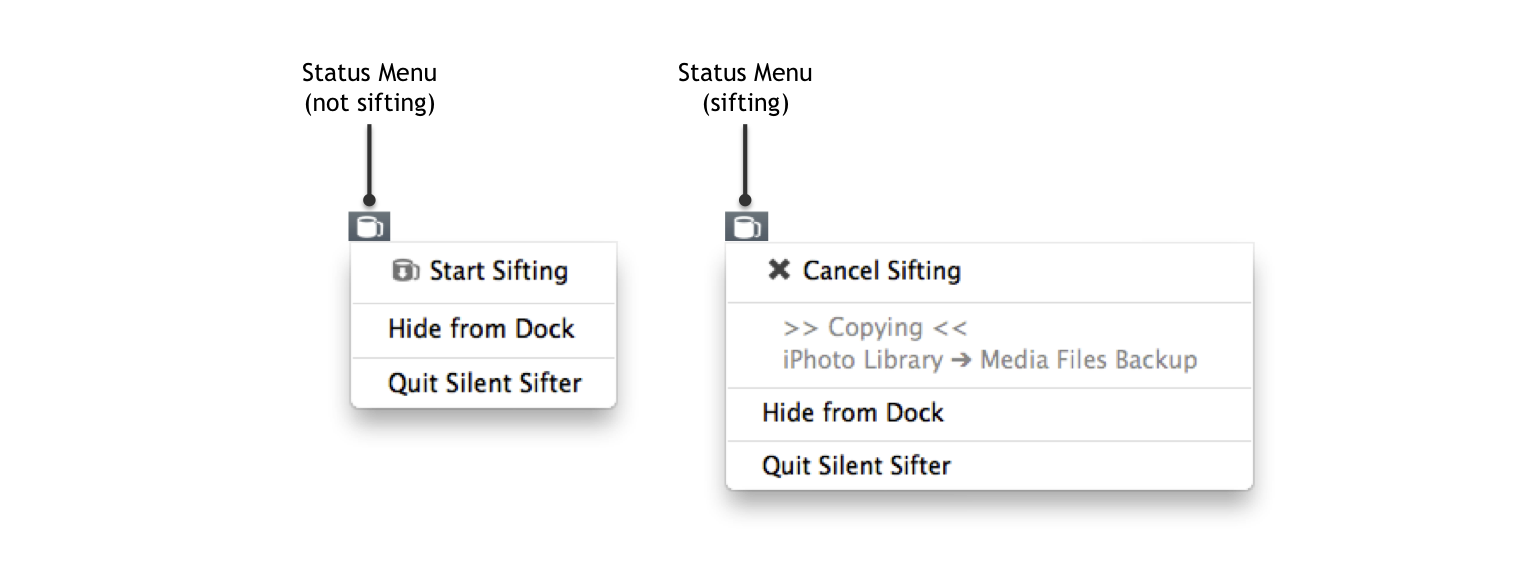
Showing/Hiding Silent Sifter from the Dock
You can hide the Silent Sifter dock icon, if you would like Silent Sifter to run in the background without a window. Once it is hidden, you will need to select the option to show the dock icon in order to see the Silent Sifter window again.
Starting Sifting
When you press the Start Sifting menu option, it is equivalent to pressing the Sift All button on the home screen.
This means that all enabled inputs will be sifted to all enabled outputs.
Using the Status Menu while Sifting
When a sift operation is underway, and you open the status menu, you will see a different set of options than when a sift operation is not occurring.
Specifically, you will see a cancel option, as well as progress status on the sift itself, similar to what is displayed on the Home screen.
Note that while you have the status menu open, some elements of the Silent Sifter UI may not update. This is normal, and Silent Sifter is still performing the sift operation, and the Silent Sifter UI will continue to update once you close the status menu.
Quitting Silent Sifter
When you quit Silent Sifter, you may receive a warning and depending on the state of the data, it may take some time to complete the quit operation.
If you are in the middle of a sift operation, it will warn you and ask if you are sure you want to quit. If you choose to quit anyway, the sift will be canceled, and then once it has been canceled Silent Sifter will exit normally. Keep in mind that the same restrictions on canceling of in-flight copy operations apply here as well – if a large file was in the middle of being copied, it may take some time for the cancel and quit to complete.
When you quit Silent Sifter, any files that need to be saved, including your configuration and your metadata will be saved. This will result in varying timeframes for when you quit the application. Please be patient and allow Silent Sifter to save it’s files in order to avoid data corruption and/or loss.