Using the preferences screen will allow you to change global preferences for how Silent Sifter functions. Changing these preferences will have a significant impact on how Silent Sifter behaves, so please understand the ramifications prior to making changes.
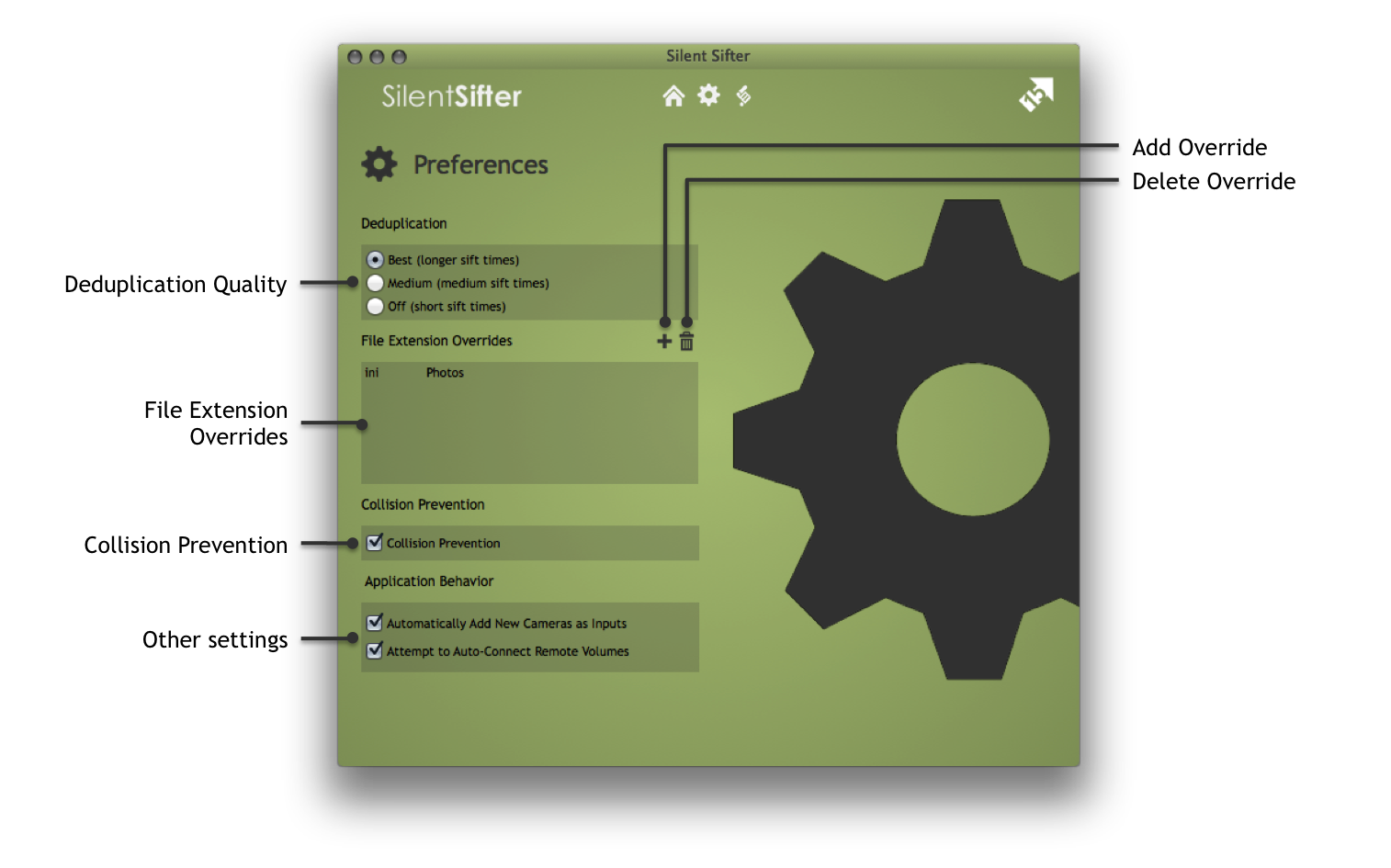
The preferences screen can be reached by selecting the menu option Silent Sifter->Preferences…

Best Quality Deduplication (MD5)
When this option is enabled, Silent Sifter will compare input files to each other and to output files using a method called ‘MD5 checksum’ prior to sifting in order to prevent copying of duplicates into your output locations.
This method focuses on the best duplicate prevention, which means sifting will take a fair amount of time, but duplicates will almost never occur.
MD5 Checksum is a deduplication mechanism that requires Silent Sifter to create a unique fingerprint for each file by loading the entire file, which can take a long time especially for large numbers of files or network file shares.
This option is enabled by default.
Why would you choose this option? In the case where the most important thing for you is that you do not copy any duplicates into your outputs.
Note that when changing from Medium Quality (FSCD) to High Quality (MD5), the initial sift after the change can take a significant amount of time because all existing files in all inputs and outputs will need to have an MD5 fingerprint generated prior to sift. If this is taking too long, you can always cancel the sift operation, return to the preferences screen and change the setting back to Medium Quality (FSCD), and all MD5 fingerprints that were created will be retained.
Medium Quality Deduplication (FSCD)
When this option is enabled, Silent Sifter will compare input files to each other and to output files using a method called ‘FSCD’ prior to sifting in order to prevent copying duplicates into your output locations.
This method balances deduplication and sifting speed, which means sifting will be relatively fast but will take some time, and deduplication quality will be relatively good but some duplicates may make it through.
FSCD is a deduplication mechanism that requires Silent Sifter to analyze and load metadata about all of the files in the output locations prior to sifting, which does take additional time during sifting. However, only the metadata about the file is loaded, not the entire file, which limits the additional sifting time.
This option is equivalent to the level of deduplication offered in Silent Sifter version 2.0.1 and earlier, and is the enabled by default for users that upgraded to Silent Sifter version 2.5 from version 2.0.1 or earlier.
Why would you choose this option? In the case where you are more worried about speed of copying than whether a few duplicates make it through.
Turning Deduplication Off
When this option is enabled, Silent Sifter will not compare input files to output files, or to other input files.
This means that the amount of pre-processing that occurs prior to files being copied will be minimal, and sifting will be much faster. However, any duplicates within your input folders will be propagated into your output folders.
File Extension Overrides
With file extension overrides, you can force Silent Sifter to recognize and sift files based on their file extension.
You simply press the ‘+’ button, and enter a case-insensitive file extension, and a file type for that file extension. Once you do so, the next time you sift, Silent Sifter will pick up and recognize those file types as what you have defined.
This allows you tremendous power and flexibility with your sifting, for example:
- Define overrides for RAW photo types that OSX does not recognize, so they are sifted as Photos by Silent Sifter
- Define overrides for sidecar files so that they are sifted as Photos or Videos (i.e. THM files which contain video metadata)
- Define overrides for GPS tracking files, such as GPX files, so they are sifted
- Define overrides for Picasa ini files, so they are moved to your new folder structure along with the sifted files
- Define overrides for MP3 files to define them as Music types, so Silent Sifter sifts your Music files
Collision Prevention
When this option is enabled, Silent Sifter will compare files it plans to copy to existing files in the output locations prior to sifting in order to ensure that file collisions are prevented.
This means that Silent Sifter must check if any of the file paths that it plans to copy already exist in the output locations, and if so, rename the filename so that the file will be copied to the output even though the filename already exists. This analysis does take additional time during a sift.
This option is enabled by default.
Why would you disable this? In the case where you are using naming conventions that will make it highly unlikely that there will be a collision, i.e. createTime_fileSize_originalFileName, then it may make sense to disable this setting. Also, in the case where you want to use filename as an pseudo-deduplication method, you may not want collision detection enabled.
Disabling this setting will provide a small speed increase your sift process, but could result in additional unique files not being copied to your output locations, and potentially lost files if you delete your originals.
Automatically Adding Cameras as Inputs
When this option is enabled, Silent Sifter will automatically add any Camera that it detects as an Input camera to Silent Sifter.
This means that if you connect a new camera device to your Mac, and Silent Sifter is running, or you launch Silent Sifter, the camera will automatically be added as an input to Silent Sifter, helping you avoid manually adding it.
Attempting to Automatically Connect Remote Volumes
When this option is enabled, Silent Sifter will attempt to reconnect to any mounted network drives that you have configured as inputs or outputs. This means that if you have a network file share, or other remote volume configured as an input or output location, and the drive is not currently connected, Silent Sifter will attempt to connect it for you.
If any kind of user interaction (i.e. to enter a password) is required, then Silent Sifter will not be able to connect the device. In some cases, attempting to connect to drive shares that are not reachable can take long periods of time before the underlying OSX networking logic times out. In this case, you can disable this preference in the Preferences menu, and re-enable it when the network resource is reachable again.