Folder Structure Settings
The output location has a setting that can be configured, the folder structure.
Changing the folder structure will affect how and where files are stored within the output location. You can select any one of the given folder structure templates that are available, or specify your own custom structure.
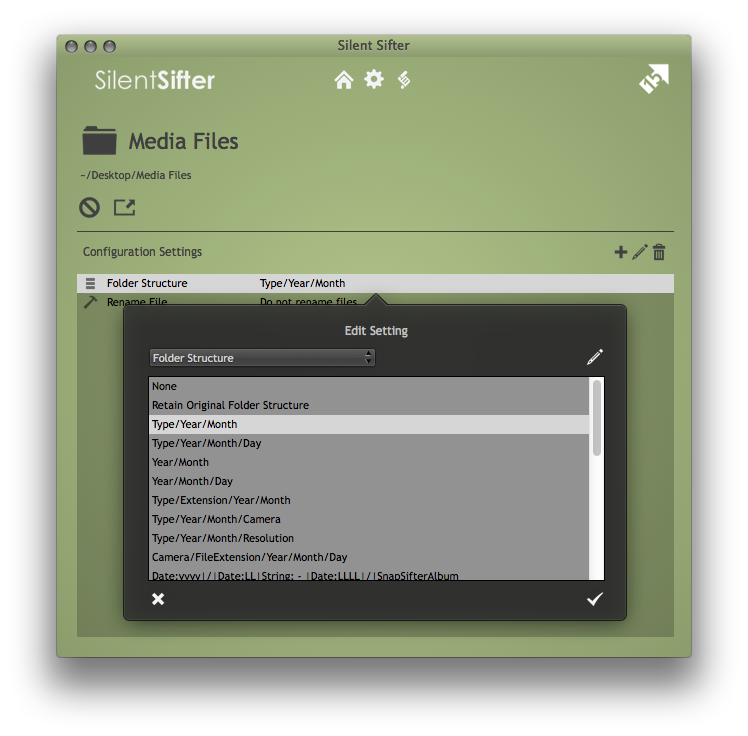
Default Folder Structure
The default folder structure for all new output locations is:
Type/Year/Month
This means that if you do not specify a folder structure, Silent Sifter will append this structure to your output location folder path, and store all files into this structure.
For example, Type/Year/Month may appear as ‘Videos/2013/01 – Jan’ for a given video file created in January of 2013.
Custom Folder Structures
If you choose your own custom structure, it must adhere to the folder structure semantics, and use only the custom metadata tokens that are available. You will use the token editor to create your custom folder structure pattern.
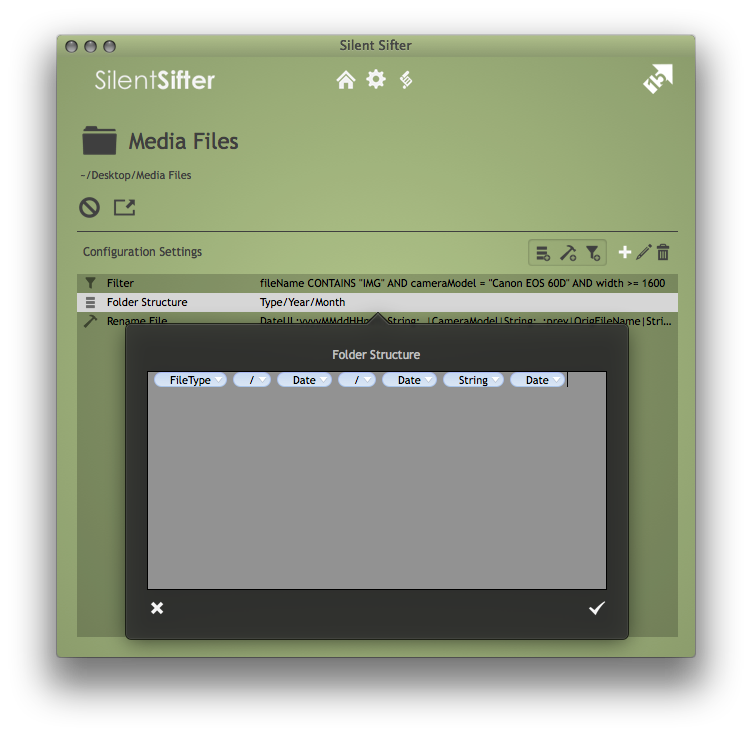
A number of templates are provided that you can use as a starting point for a custom folder structure.
To start with a template, delete your folder structure setting (because each output folder can only have one folder structure setting), create a new setting, select a template, then press the ‘edit’ button, which looks like a pencil. This will pre-populate the custom folder structure editor with the template you have chosen.
For convenience, the last 20 custom folder structure patterns that you have used will be cached and available for you to select without retyping. These are located at the bottom of the list of folder structure patterns.
The custom folder structure value you enter should adhere to these semantic rules:
- Use the slash character (i.e. / ) to specify folder hierarchy
- Must not start with the slash character
- Must not end with the slash character
- Use the pipe character (i.e. | ) to delimit tokens that should be concatenated
Examples
Sometimes it is easier to see examples. Keep in mind that these examples use Tokens.
Keep in mind that the full path for these examples would have the Output Folder Path prefixed to the front, and the filename appended to the back.
For example:
OutputFolderPath/Canon SD 550/JPG/2012/02/14/FileName.ext
| Pattern | Result |
|---|---|
Date:yyyy/Date:MM |
2012/02 |
Date:yyyy|String: – |Date:MMM |
2012 – Feb |
Date:yyyy/Date:MM|String:_|Date:dd |
2012/02_14 |
FileType/Date:yyyy/Date:LL|String: – |Date:LLLL |
Photos/2012/02 – February |
FileType/Date:yyyy/Date:LL|String: – |Date:LLLL/Date:dd |
Photos/2012/02 – February/14 |
Date:yyyy/Date:LL|String: – |Date:LLLL |
2012/02 – February |
Date:yyyy/Date:LL|String: – |Date:LLLL/Date:dd |
2012/02 – February/14 |
FileType/FileExt/Date:yyyy/Date:LL|String: – |Date:LLLL |
Photos/JPG/2012/02 – February |
FileType/Date:yyyy/Date:LL|String: – |Date:LLLL/CameraModel |
Photos/2012/02 – February/Canon SD 550 |
FileType/Date:yyyy/Date:LL|String: – |Date:LLLL/Resolution |
Photos/2012/02 – February/1920×1080 |
FileType/Date:yyyy/Date:LL|String: – |Date:LLLL/ParentFolder |
Photos/2012/02 – February/Jeffs Birthday |
CameraModel/FileExt/Date:yyyy/Date:LL/Date:dd |
Canon SD 550/JPG/2012/02/14 |