About Filters
Input and Output locations can be configured with filters, that will restrict which files come from each location (in the case of input locations) and go to each location (in the case of output locations).
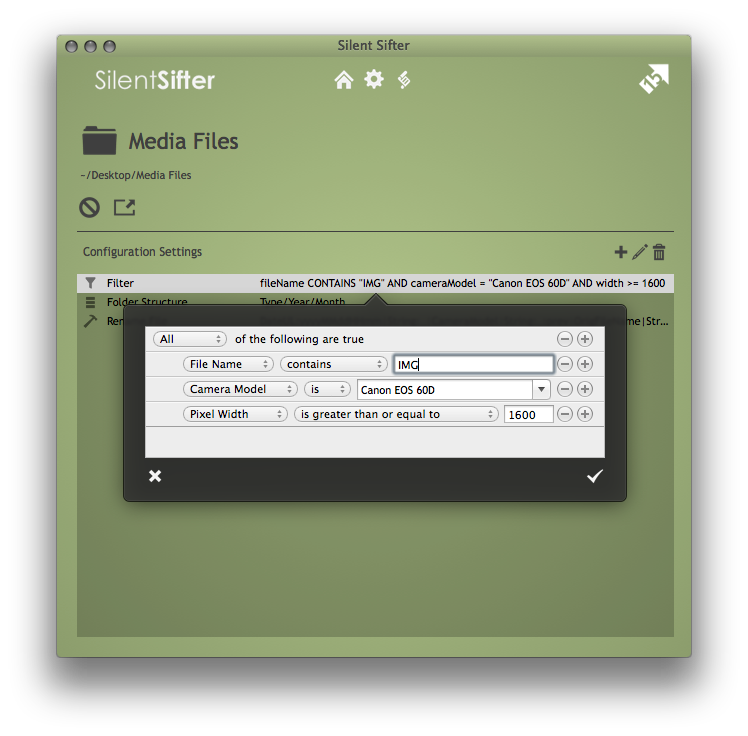
For example, if you only want to import MOV files from your iPhone, you would configure a filter on the iPhone input location where ‘fileExtension is MOV’. After you configured this filter, any sift operation would process any files from the iPhone source unless it had a fileExtension of MOV.
Similarly, if you wanted all of your files to go to output location A, and wanted only Videos to go to output location B, you would configure a filter on output location B where ‘type is Videos’. After you configured this filter, any sift operation would not copy any files to output location B unless the file type was Videos.
Filter Notes
A few notes on Filters:
- You can configure as many filters as you would on a given input / output location
- Filters are specific to a single input or output location – they apply only to the location they are configured on.
- Multiple Filters on a single location will be applied one at a time, which means that they are essentially all ANDed together.
- Filters can be applied to the metadata of the input file, regardless of whether the filter is configured on the input or the output location. i.e. if you have a filter based on the parentFolder, the filter will be applied to the parentFolder of the file where it was originally located in the input location path.
- Filters are applied on Input locations first, and then on Output locations. So if you configure a ‘Only JPG’ filter on your iPhone input, then nothing but JPGs will ever make it into any output from that iPhone.
- Units of measure: the fileSize filter is in bytes, the width/height filter is in pixels, the duration filter is in seconds
Filtering with Metadata
You do have the capability to filter using image, file, and spotlight metadata.
However, the metadata keys are discovered during sifting, specifically while fingerprinting new files. The metadata keys discovered are then populated in the list of choices in the Filter builder popover.
This means that you need to sift some new files before you will see the image, spotlight, and file metadata filter keys available.
If you have sifted some files, and the new files were fingerprinted, and you still cannot see the new metadata keys available in the filter builder popover, try to quit Silent Sifter, and restart it, and check again.