Output locations are where you would like the Sifter to create your centralized repositories of photos and videos.
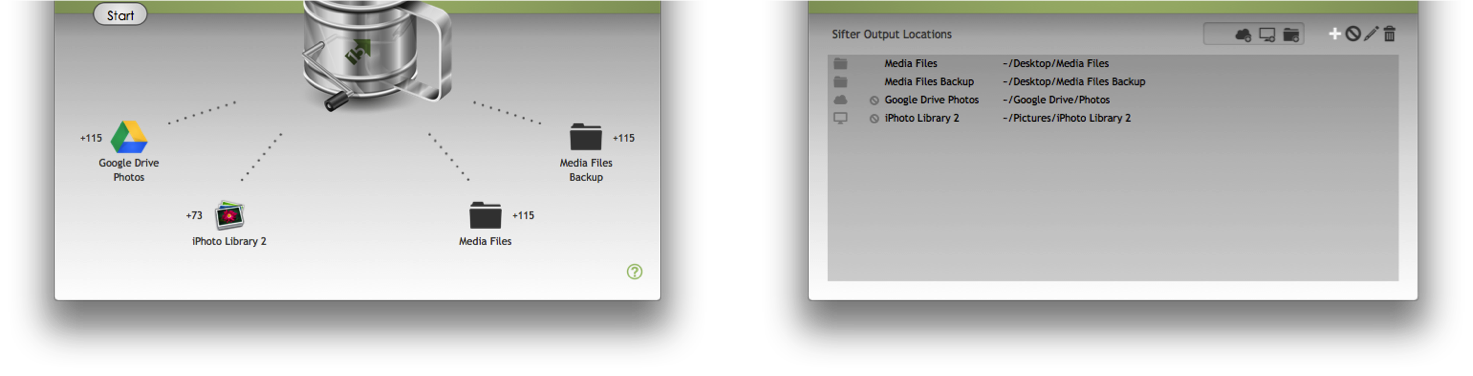
There are three types of Output Location:
- Folders
- Desktop Applications (iPhoto)
- and Cloud Storage (Dropbox/Google Drive)
You can select as many output locations as you would like, however only the first 5 output locations will be displayed on the Home screen.
Note that only locations that are currently present will be displayed on the home screen; for example, cameras that are not connected to the computer or SD cards which are not inserted into the computer will not be displayed.
Folder Outputs
 |
Output Folders can be any writable location on your Mac that you can select with the Finder.This means you can select standard folders on your internal hard drive, SD cards, USB hard drives, USB thumb drives, or network folders on remote machines. If you can access it with Finder, you can make it an output folder. |
Adding with Drag and Drop
To add a folder, drag the folder from Finder to the output area of the home screen or the output area of the configure screen. Drop it on the output area, and it will automatically be added if it is recognized as a valid location.
Adding with Menus
To add a folder via menus, press the add folder button (which looks like a folder) above the Output Locations, and choose the folder you would like to use as an Output Folder.
iPhoto Outputs
 |
You can use your managed iPhoto Library as an output location, and Silent Sifter will sift photos/videos into iPhoto so that when you launch iPhoto the files will automatically be imported into the iPhoto library.Silent Sifter simply provides the files to iPhoto to import – it does NOT modify the iPhoto Masters or library contents outside of the ‘auto import’ directory.Note: Import is not complete until iPhoto has been launched, iPhoto detects the new files, and imports them. If the iPhoto library is open while you are sifting, this will occur automatically. This will need to be done for each iPhoto library file, if you have multiple iPhoto library files configured in Silent Sifter. |
Adding with Drag and Drop
To add an iPhoto library as an output location, drag the folder from Finder to the output area of the home screen or the output area of the configure screen. Drop it on the area, and it will automatically be added if it is recognized as a valid location.
Adding with Menus
To add an iPhoto library as an output location via menus, press the add Desktop Application button (which looks like an iMac desktop computer) in the Add Output Locations tray, selecting iPhoto, and pressing the save button (which looks like a checkmark). You will then be asked to choose an iPhoto Library. Once you have selected a file, press ‘Choose’. If the file is recognized as an iPhoto Library, it will be added.
Referenced iPhoto Libraries
Note that Referenced iPhoto Libraries are not supported by the iPhoto output location, but can be sifted by using a Folder output location, and selecting the folder(s) where iPhoto referenced photos/videos are stored.
iPhoto Versions Supported
Versions: Silent Sifter has been tested extensively with iPhoto within iLife ‘11 (9.2.3 and 9.4.2), and should be backwards compatible with iPhoto within iLife ‘09 (8.x), and even iPhoto within iLife ’08 (7.x).
Dropbox Outputs
 |
Dropbox Output Locations behave nearly identically to Output Folders.You will need to have the Dropbox client installed on your Mac and be able to navigate to it via the Finder. To download the Dropbox client, visit http://dropbox.com. Once you have the client installed and configured, you can select choose any Dropbox location on your Mac that you can select with the Finder.Silent Sifter assumes that Dropbox is located at the default location of ~/Dropbox, unless otherwise specified. |
Adding with Drag and Drop
To add a dropbox folder, drag the folder from Finder to the output area of the home screen or the output area of the configure screen. Drop it on the area, and it will automatically be added if it is recognized as a valid location.
Adding with Menus
To add a dropbox folder via menus, press the add cloud storage button (which looks like a cloud) above the Output Locations in the Add Output Locations tray, choose Dropbox, and then choose the Dropbox folder you would like to use as an Output Folder.
Google Drive Outputs
 |
Google Drive Output Locations behave nearly identically to Output Folders.You will need to have the Google Drive client installed on your Mac and be able to navigate to it via the Finder. To download the Google Drive client, visit http://drive.google.com. Once you have the client installed and configured, you can select choose any Google Drive location on your Mac that you can select with the Finder.Silent Sifter assumes that Google Drive is located at the default location of ~/Google Drive, unless otherwise specified. |
Adding with Drag and Drop
To add a Google Drive folder, drag the folder from Finder to the output area of the home screen or the output area of the configure screen. Drop it on the area, and it will automatically be added if it is recognized as a valid location.
Adding with Menus
To add a Google Drive folder via menus, press the add cloud storage button (which looks like a cloud) above the Output Locations in the Add Output Locations tray, choose Google Drive, and then choose the Google Drive folder you would like to use as an Output Folder.