There are two ways to add these types of inputs: drag and drop, and with the configure screen.
Drag and Drop
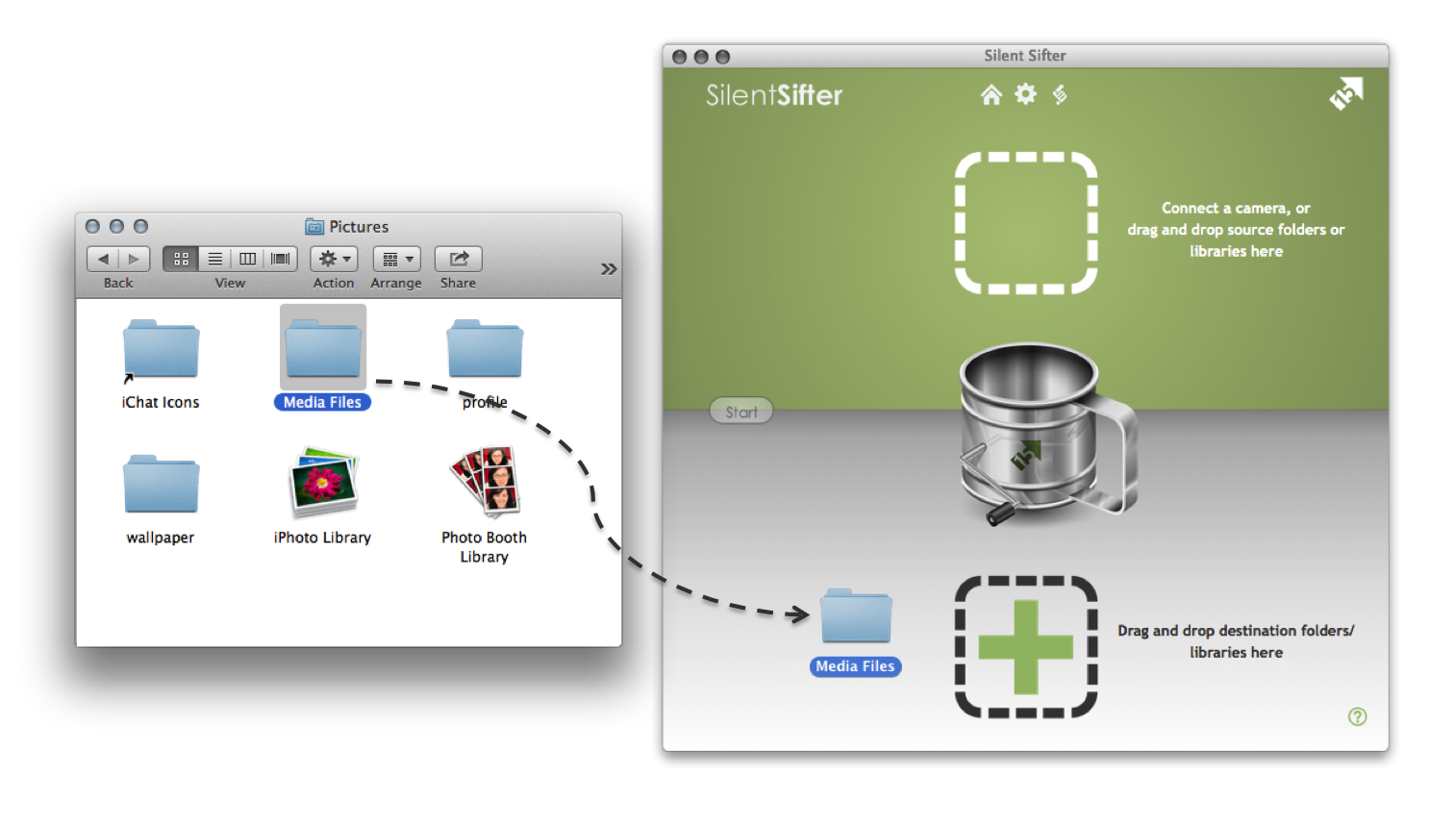
- Open a Finder window
- Locate the folder or Library file where you want Silent Sifter to place the organized photos/videos.
- iPhoto Library: a single file that contains all your iPhoto data, typically it is located in your Pictures folder, and is typically named ‘iPhoto Library’
- Folder (standard, gDrive, or Dropbox): a single folder that you want to contain your organized photos/videos
- Select the folder or Library file in the Finder window, and drag it from the Finder window into the Silent Sifter window
- Drop the folder or Library file in the ‘output’ area (bottom white half of the Home screen) in Silent Sifter.
You can repeat this process for any folder or iPhoto Library.
You can also perform this process, but instead drop files into the ‘output’ area (bottom white half) of the Configure screen in Silent Sifter.
Configure Screen
- Open Silent Sifter
- Change to the Configure screen, by pressing the ‘gear’ button at the top of the screen
- Show the add outputs button tray, by pressing the ‘plus’ button above the list of outputs
- Press the appropriate button for the type of output you want to add
- Folder: folders
- Applications: iPhoto
- Cloud: Dropbox, GoogleDrive
- Choose the folders or libraries you would like to add, and press ‘Choose’You can repeat this process for any folder or iPhoto Library.
Note that you can add multiple folders or libraries at once by selecting more than one and pressing ‘Choose’.