When you run into an issue with Silent Sifter and are working with our Support team, it is often helpful for us to take a look at a screenshot of what you are seeing, or at the Silent Sifter log file.
Luckily, it is pretty easy to do both. Here is how you do it.
Sending the system.log file to our support team
1. Launch Silent Sifter
2. In the main menu bar, click on Help, and then the 'Show Log Folder in Finder' option

3. A finder window should open that shows the 'logs' folder, and you should see the 'system.log' file in the logs folder
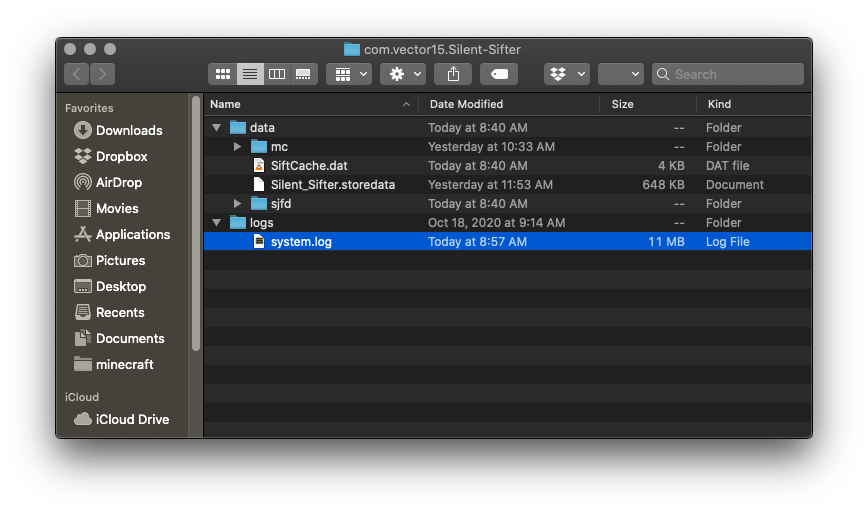
4. The system.log file is the file we are interested in seeing.
5. To attach the file to a case you already opened: attach the system.log file to an email response to us and then send us your response. The system.log file will be automatically attached to the case for us to look at.
6. To attach the file to a new case, and drag the system.log file to the attachments area before pressing 'send'